TV & streaming
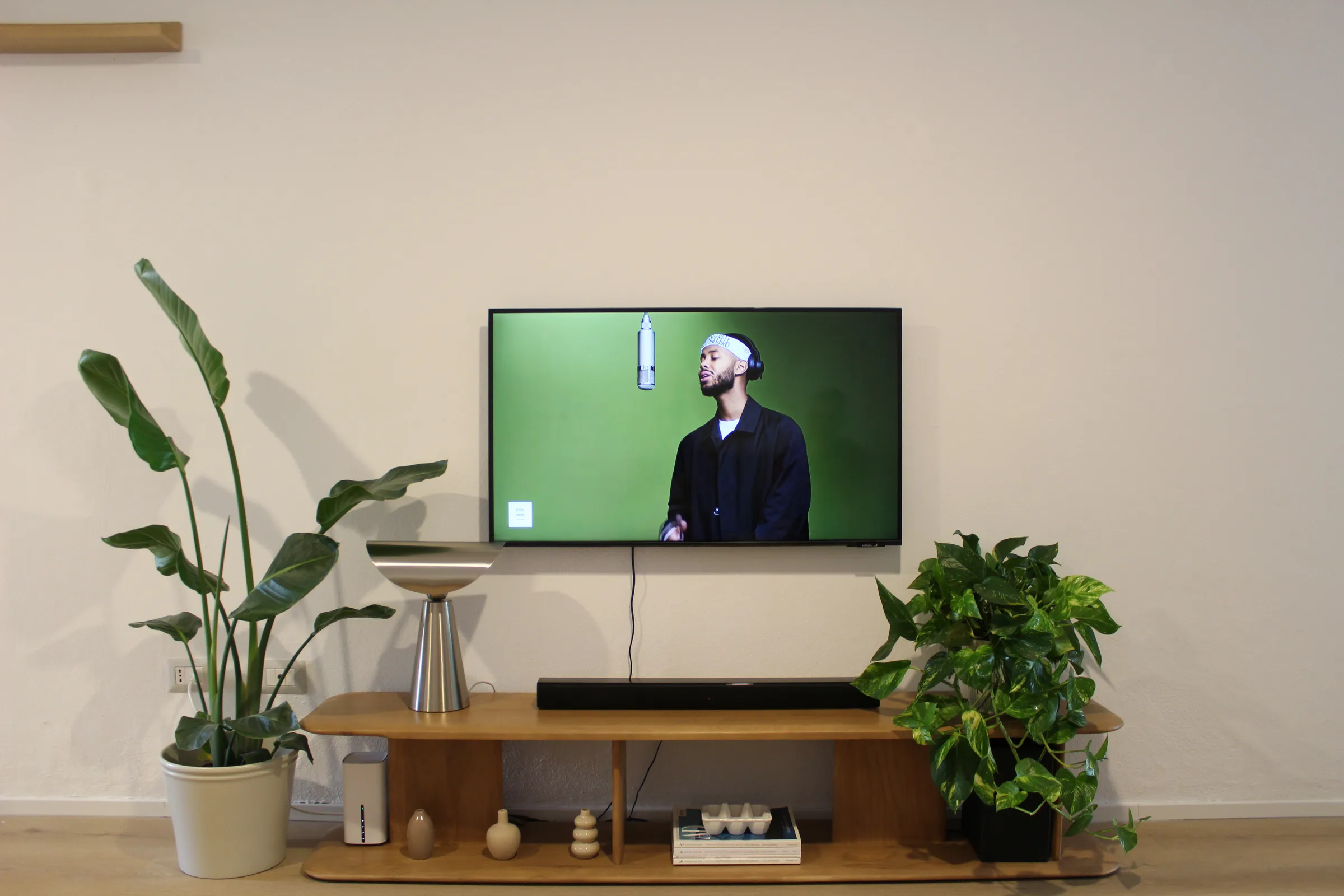
A smart TV in the living room with Netflix, YouTube and the usual streaming apps. There are two remotes — here's which does what.
The smart TV in the living room has Netflix, YouTube, Prime and the usual apps built in. The only thing that trips people up is the two remotes — so let's clear that up first.
Watching something
-
Turn it on
Use the small remote (the TV's own). Press the power button at the top — give it a few seconds to wake up.
-
Get to the apps
Press the HOME button to see the app row, then use the arrows and OK to open Netflix, YouTube or Prime.
Placeholder layout — adjust to the actual TV/streaming stick in the house.
-
Sign in to streaming (optional)
Feel free to log in to your own accounts. Please sign out before you check out so the next guests don't see your profile.
-
Switch source if needed
If the screen is blank or on the wrong input, press SOURCE / INPUT and choose HDMI 1 (the streaming stick).
-
Sound
Volume is on either remote. For a film, the soundbar turns on automatically with the TV.
Stuck on a black screen? Press SOURCE and select HDMI 1. Still nothing — team@nudoandcrudo.com.